We have improved the way we count conversions on the platform. These improvements are consistent with industry norms and were made to provide you with better conversion attribution and tracking results.
New Look
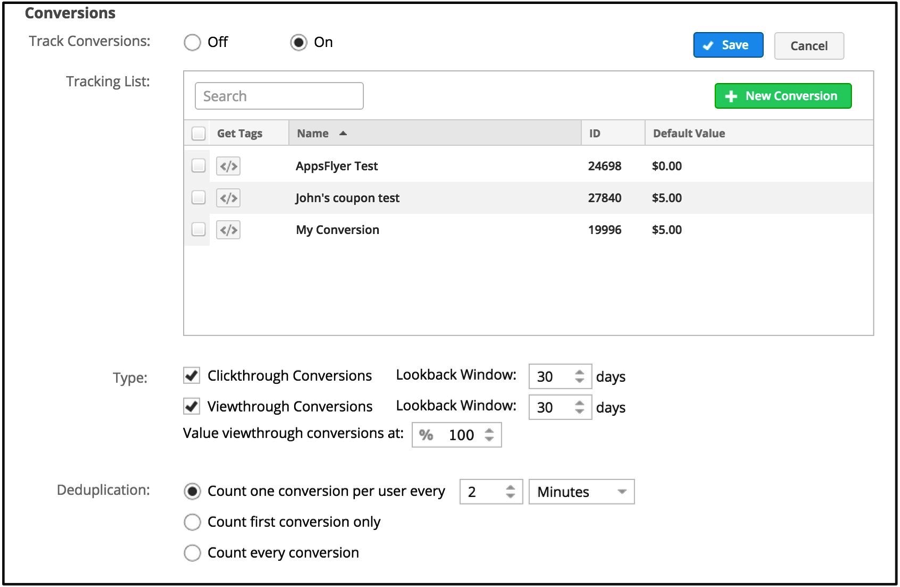
New Settings
With these improvements you now have the option to configure the following conversion settings for campaigns:
|
New Setting |
Explanation |
|
Tracking List |
Specify the conversions you would like this campaign to track by selecting them from the list. You may select multiple conversions. |
|
Type |
Specify whether you want to track clickthrough conversions, viewthrough conversions, or both. |
|
Lookback Window |
The maximum number of days that can elapse between a click and a conversion or a view and a conversion for the conversion to still be counted. Note that if a view happens after a click, we will still count as a clickthrough conversion if it is within the lookback window as clicks are a stronger signal. |
|
Value Viewthrough Conversions |
Some advertisers may have determined that they value viewthrough conversions at a lower value than clickthrough conversions. Setting a value of less than 100% will discount the revenue associated with a viewthrough conversion accordingly. For example, if your conversion has revenue of $10 associated and the viewthrough conversion valuation is 50%, we will count only $5 of revenue. |
|
Deduplication |
How do you want multiple conversion events to be handled? The default setting is appropriate under most circumstances. If a conversion pixel is triggered more than once within two minutes, we will only count one conversion. This balances the chance of accidental repeat fires (for example, if a user refreshes the page) with the possibility of multiple conversion events happening (for example, if a user makes a second purchase in the same day). However, you may also apply more or less restrictive counting settings as you prefer. |
Migration
There is a migration process associated with implementing these improvements for your account. You will need to make some changes to your campaign settings.
**Failure to do so will result in your campaigns no longer counting conversions once the migration deadline has passed. **
Please take a moment to review the following:
- Centro will notify you that your account is due for migration. This notification will also include an important deadline.
- When you log into your Centro DSP account, you will see a notice about the conversion update.
- During this migration period, you will have the option to set the new conversion tracking settings, but note that the old methodology will still apply until we complete the migration process and enable the improvements. For each campaign you have that is tracking conversions, you will need to edit your campaign to update the conversion settings. When you edit the campaign, you will see a new section in the Campaign Editor on the General screen that looks like this:
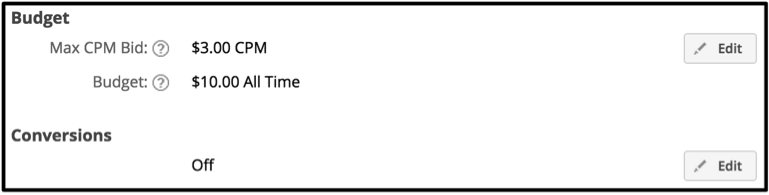
** If your campaign was only tracking click-through conversions, you may see “Off” here. This is because the previous methodology did not require setting the specific conversion pixels to be tracked for click-through conversions. Your campaign will continue to track click-through conversions until the migration deadline even though you see “Off”.
- When you click Edit, you will see the new conversion settings:
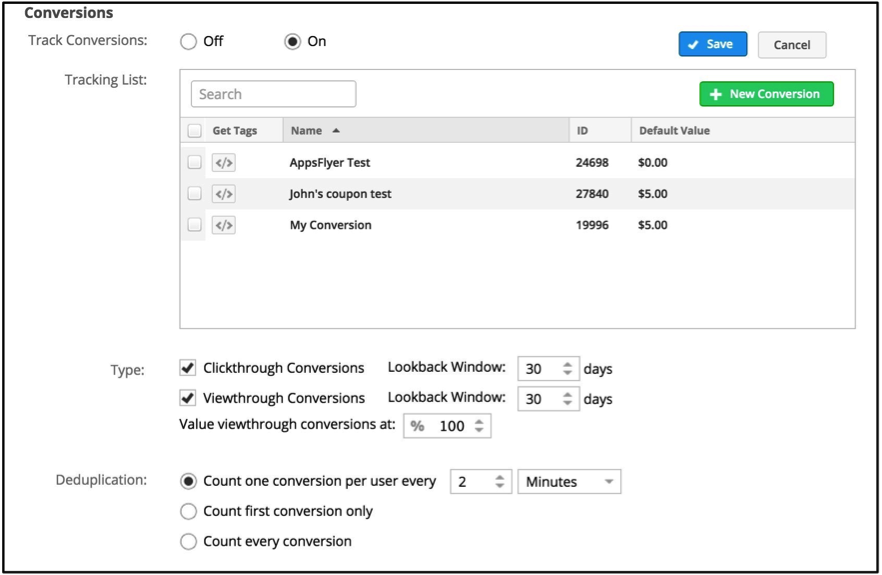
- Adjust each of your campaign's configurations as desired, and click Save.
- Repeat for each campaign on which you wish to continue track conversions.
- After the deadline we specified to you in step 1, we will enable the new conversion attribution methodology to your account. At that point, you will stop seeing the migration notice upon login and the new and improved conversion tracking will be in effect.